IRS View Account: What You Can See and How to Fix Errors
If you file truck taxes (like Form 2290 for HVUT), it is normal to end up on IRS.gov trying to “view your account” to confirm payments, check balances, or understand a notice. The good news is that the IRS now offers online account tools that can show key details in one place. The tricky part is knowing which account to use (individual vs business) and what to do when something looks wrong.
This guide explains what IRS View Account typically refers to, what information you can see, and how to fix common errors that can delay your Schedule 1, IRP registration, or other compliance tasks.
Note: This article is for general information, not tax advice. For case-specific guidance, consider contacting the IRS or a qualified tax professional.
What “IRS View Account” means (and which account you actually need)
When people search IRS View Account, they are usually looking for the IRS Online Account experience. There are two common versions:
- Individual IRS Online Account: Most commonly used for personal tax items (like Form 1040), transcripts, and notices tied to an SSN.
- IRS Business Tax Account: Used to view and manage certain business tax information tied to an EIN.
For Form 2290 (Heavy Vehicle Use Tax), filings are generally tied to your EIN, not an SSN. That means business-facing tools and correct EIN information matter most when you are troubleshooting a mismatch or confirming excise tax activity.
Helpful starting points from the IRS:
If you are an owner-operator with an EIN, you may still use the individual account for personal items, but your 2290 filing identity is tied to your EIN and business name on IRS records.
How to access your IRS account online (step-by-step)
The IRS generally uses identity verification and multi-factor authentication to protect taxpayer data. Plan a few minutes to set it up.
Step 1: Go to the correct IRS account page
Start at the official IRS pages above. Avoid search ads that imitate IRS branding.
Step 2: Sign in and complete identity verification
The IRS uses secure sign-in providers (commonly including ID verification workflows). Be ready with:
- A phone number in your name (for verification codes)
- Photo ID
- Email access
If you are managing a business, make sure you are using the correct identity that is authorized to access that EIN’s information.
Step 3: Turn on strong login security
Use multi-factor authentication (MFA) and store backup codes securely. This is especially important if you run a fleet and multiple staff handle compliance.
Step 4: Review profile and tax modules
Once logged in, look for sections such as:
- Profile (name, address)
- Payments and balances
- Notices and letters
- Transcripts and records
Not every module shows every tax type, and some excise tax details may still require contacting the IRS directly.

IRS View Account: what you can see (and why it matters for Form 2290 filers)
What you see depends on whether you are in an individual account or a business account, and on what the IRS currently supports for your tax type.
Here is a practical view of the most useful items truck owners and fleets typically look for.
| Account item you may see | Why it matters to truckers and fleets | Common “error” symptom |
|---|---|---|
| Payments activity | Helps confirm an IRS payment posted (especially when using EFTPS or direct debit) | Payment shows as missing, pending, or applied to the wrong period |
| Balance due | Helps identify outstanding amounts that could trigger notices or penalties | A surprise balance, interest, or penalty entries |
| Notices and letters | Lets you understand what the IRS is requesting and deadlines | You receive a notice you do not recognize or cannot interpret |
| Transcripts / tax records | Useful for validating identity info and history (varies by account type) | Data does not match what you filed or what your provider shows |
| Profile details | Address mismatches can delay mail and cause confusion | IRS letters going to an old address |
For Form 2290 specifically, remember that the “proof” you need for registration is usually your IRS-stamped Schedule 1 after your return is accepted. If you filed through an e-file provider, your fastest confirmation is typically your filing status and Schedule 1 inside that provider’s dashboard.
If you need help verifying whether your Form 2290 was accepted, see: How to check 2290 filing status.
Common IRS account errors (and exactly how to fix them)
Some issues are true IRS account errors, and others are data mismatches between what you entered on a return and what the IRS already has on file. Below are the most common issues that impact Form 2290 filers.
1) Business name or EIN mismatch
What it looks like
- Your Form 2290 e-file rejects due to EIN or name mismatch.
- You are sure the EIN number is correct, but the IRS does not accept the business name format you entered.
Why it happens
- The IRS matches your EIN to the legal business name as it appears on the EIN assignment record.
- Common problems include punctuation, spacing, using a DBA instead of the legal name, or using an owner name instead of the entity name.
How to fix it
- Confirm the legal name exactly as shown on your EIN letter (often CP 575) or other IRS confirmation.
- If you do not have the letter, you can request EIN verification from the IRS (many filers request a 147C letter).
- Re-file or re-transmit with the corrected legal name.
If you are still stuck, start with the IRS phone guidance and have your EIN, rejection details, and prior filings ready. This resource may help: IRS customer support phone numbers.
If you need an EIN first, see: How to apply for an EIN online for Form 2290 filing.
2) Address is wrong (or you are not receiving IRS mail)
What it looks like
- You cannot find an expected notice.
- IRS correspondence is going to an old address.
How to fix it
For a business tied to an EIN, the IRS commonly uses Form 8822-B for address changes.
- IRS reference: Form 8822-B, Change of Address or Responsible Party
After you update the address, allow time for IRS systems to reflect the change. If you have an urgent deadline, call the IRS and document the date, time, and outcome of the call.
3) Payment is missing, pending, or applied to the wrong tax period
What it looks like
- You paid, but the IRS account does not show it.
- You see a payment, but it is not tied to what you expected.
Common reasons
- Processing time (especially around high-volume periods).
- Wrong tax form, tax period, or EIN used when scheduling a payment.
How to fix it (practical workflow)
- Confirm the payment method you used and the confirmation number.
- If you used EFTPS, verify your scheduled payment details in EFTPS.
- If you used direct debit through e-filing, verify what you authorized and the settlement date.
EFTPS reference: EFTPS
If the payment truly posted to the wrong period, you may need IRS assistance to move it. Keep supporting documentation (confirmation pages, bank statement lines, and submission acknowledgments).
4) You see a notice you do not understand
What it looks like
- An IRS notice appears in your account (or arrives by mail) referencing a balance, penalty, or missing information.
How to respond safely
- Read the notice number and tax period carefully.
- Compare it to your filing records and acceptance confirmation.
- If you filed Form 2290, confirm you have the correct tax year and First Used Month.
If you suspect a filing error (VIN typo, wrong month, duplicate filing), fix the return first, then respond to the notice if needed.
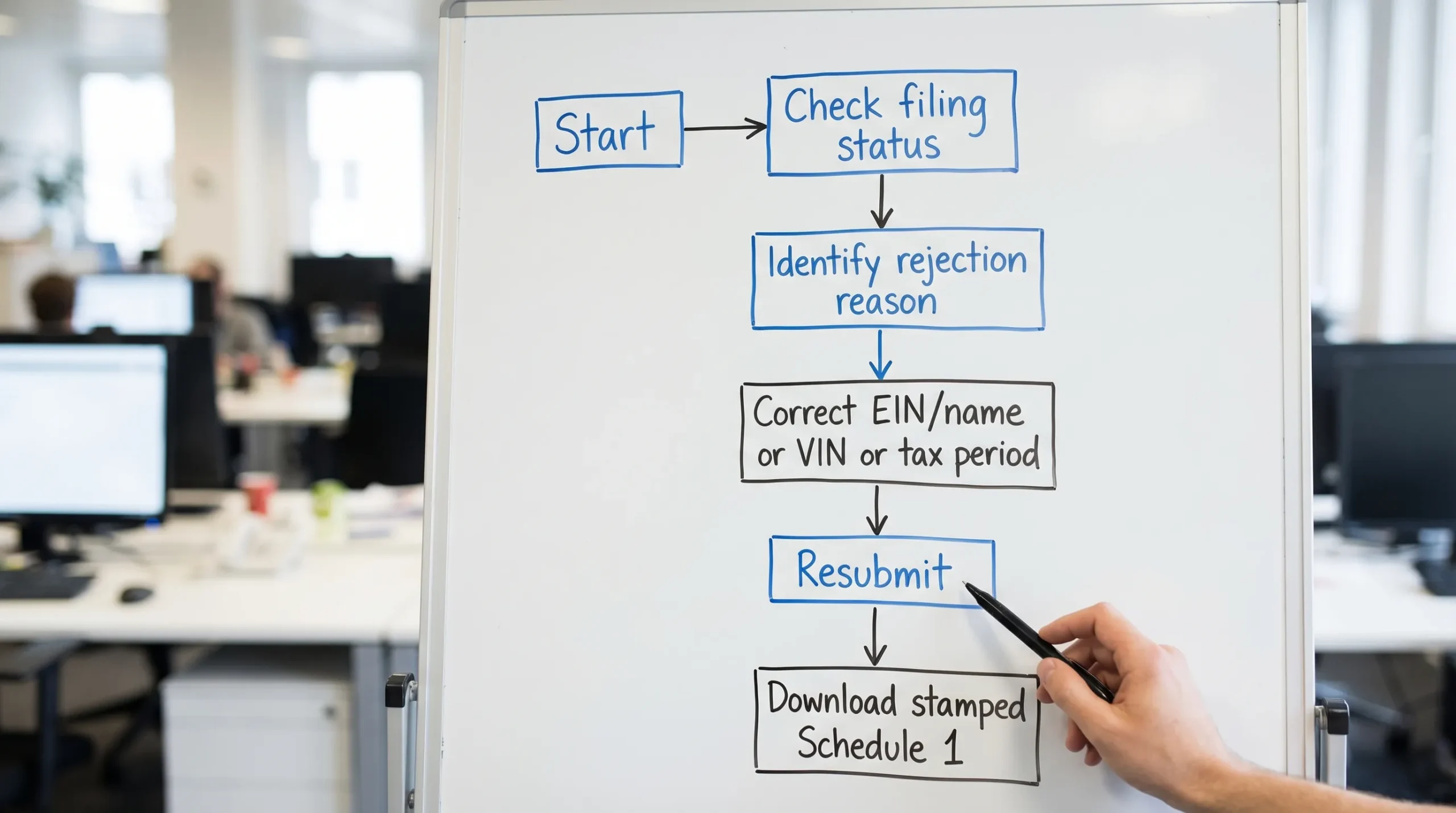
5) Your Form 2290 was rejected, and your account view does not help
IRS account tools are useful, but they do not always explain an e-file rejection in detail. Many HVUT issues are return-level issues, not “account dashboard” issues.
Common rejection triggers include:
- VIN entry errors
- EIN and business name mismatch
- Duplicate filing
- Wrong tax period or First Used Month
If the VIN is wrong after acceptance, you typically resolve it with a VIN correction. For a step-by-step explanation, see: How to do VIN correction for free.
If you need to check where your return stands first, use: How to check 2290 filing status.
Quick “error to fix” table (best next step by situation)
Use this table as a fast decision guide when your IRS View Account doesn’t match what you expected.
| Problem you see | Likely cause | Best fix | Who to contact first |
|---|---|---|---|
| 2290 rejected for EIN/name mismatch | Legal name format does not match IRS EIN record | Verify legal name, re-file with exact IRS name | Your e-file provider support, then IRS if needed |
| Payment not showing | Processing time or wrong payment details | Confirm confirmation number and payment details, allow time, then call to trace | EFTPS support or IRS payment support |
| IRS letters going to old address | Address not updated in IRS system | File Form 8822-B and document the change | IRS (and update provider profile too) |
| Schedule 1 not available | Return not accepted yet or rejection occurred | Check filing status, fix rejection, re-transmit | Your e-file provider dashboard/support |
| VIN error discovered after filing | VIN typed wrong or transposed | File VIN correction amendment | Your e-file provider |
Best practices to prevent IRS account surprises (especially for fleets)
Most “IRS View Account” problems are preventable with consistent data and a repeatable workflow.
- Standardize your legal business name formatting across registrations, banking, and e-filing.
- Keep an internal “source of truth” file for each unit: VIN, taxable gross weight category, first-used month, and a copy of last Schedule 1.
- File early in the season (HVUT tax year starts July 1) to reduce deadline stress and allow time to correct rejections.
- Save proof of payment and acceptance acknowledgments.
If your operation involves many vehicles, use a process that supports bulk filings and record retrieval so you are not rebuilding data every year.
When to use the IRS account vs. your 2290 e-file provider
Use the IRS account when:
- You need to review IRS notices and correspondence.
- You are checking broader payment and balance context.
- You are verifying identity and profile information.
Use your Form 2290 e-file provider dashboard when:
- You need real-time Form 2290 filing status (Accepted, Rejected, Pending).
- You need to download and store the IRS-stamped Schedule 1.
- You need to correct 2290-specific issues (like VIN corrections or amendments).
Frequently Asked Questions
What is “IRS View Account”? It usually refers to the IRS Online Account experience where you can sign in at IRS.gov to view payments, balances, notices, and certain tax records.
Can I see my Form 2290 details inside my IRS Online Account? IRS online tools can show useful account-level information, but Form 2290 confirmation and your stamped Schedule 1 are typically accessed fastest through your e-file provider after IRS acceptance.
Why does my Form 2290 get rejected even though my EIN is correct? Many rejections happen because the business name entered does not match the exact legal name tied to that EIN on IRS records (for example, using a DBA or different punctuation).
How do I update my business address with the IRS? Businesses often use Form 8822-B to update an address or responsible party information. Confirm the latest instructions on IRS.gov before submitting.
What should I do if my Schedule 1 is delayed? First, check whether your return was accepted or rejected. If rejected, correct the error and resubmit. If accepted, download the stamped Schedule 1 from your e-file provider dashboard.
File Form 2290 with fewer errors and get Schedule 1 faster
If you are filing HVUT and want to reduce rejections (like EIN/name mismatches and VIN typos), e-filing through an IRS-authorized provider can simplify the process. Simple Form 2290 offers a guided online filing portal, bulk vehicle filings for fleets, secure data storage, bilingual support (English/Spanish), and quick access to your IRS-stamped Schedule 1 after acceptance.
Start here: Simple Form 2290 e-file or, if you already filed, check your status using this guide: How to check 2290 filing status.