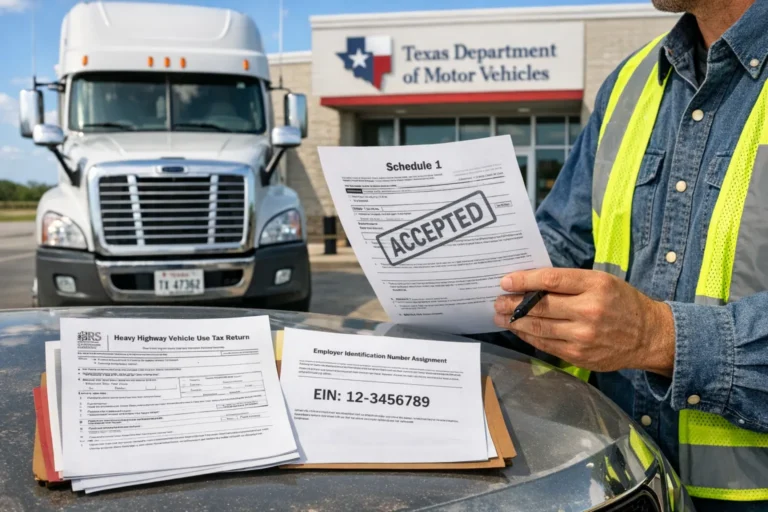
What Is Freight Rate? A Simple Guide for Truckers and Owner-Operators Filing Form 2290
Freight rate is the money a trucker earns for moving cargo from point A to point B. It is the price tag attached to every load, usually quoted per mile, per load, or per hundredweight.
For owner-operators and small fleets, understanding What Is Freight Rate is more than a pricing exercise, it is the line between a thriving business and a stalled one. This guide explains how freight rates work, walks through the latest 2026 market data, compares pricing models, and shows how on-time Form 2290 filings through SimpleForm2290 protect the margins truckers fight so hard to win.
What Is Freight Rate?
What Is Freight Rate at its simplest? It is the agreed-upon dollar amount a shipper or broker pays a carrier to haul a load. The rate is shaped by several factors:
-
Distance between pickup and delivery
-
Weight and dimensions of the cargo
-
Equipment type (dry van, reefer, flatbed, hotshot)
-
Fuel prices and surcharges
-
Lane demand and seasonality
-
Accessorials like detention, lumper fees, and tarping
A clear understanding of What Is Freight Rate gives truckers the confidence to accept profitable loads and walk away from cheap freight that drains cash flow.
How Truck Freight Rates Are Structured
Truck freight rates typically follow one of three pricing models:
-
Per mile rate – most common for full truckload (FTL)
-
Flat rate per load – common for short hauls and dedicated lanes
-
Per hundredweight (CWT) – common for LTL and partial loads
The standard linehaul formula looks like this:
Total Pay = Loaded Miles x Rate Per Mile + Fuel Surcharge + Accessorials
A well-written rate confirmation breaks out each component so disputes over detention or unloading fees are easier to resolve.
Truck Freight Rate in US: 2026 Benchmarks
The truck freight rate in US markets is finally stabilizing after three turbulent years. Here is the early 2026 picture pulled from DAT, FreightWaves, and ATA benchmark data:
| Equipment | National Avg Rate Per Mile | Trend vs 2025 |
|---|---|---|
| Dry Van | $2.05 | +4% |
| Reefer | $2.38 | +6% |
| Flatbed | $2.52 | +3% |
| Power Only | $1.95 | +2% |
| Hotshot | $1.85 | -1% |
Three trends shaping truckload freight rates this year:
-
Reefer demand is up thanks to grocery, produce, and pharma volume.
-
Flatbed remains strong as infrastructure spending continues.
-
Diesel has stabilized around $3.70 per gallon nationally, easing fuel surcharge swings.
For owner-operators, this means lane selection and rate negotiation matter more than ever.
Spot Rates vs Contract Rates: A Quick Comparison
| Feature | Spot Rate | Contract Rate |
|---|---|---|
| Pricing window | Daily or weekly | Locked for 6 to 12 months |
| Volatility | High | Low |
| Best for | New carriers, hot lanes | Established fleets, steady revenue |
| Margin potential | Bigger upside in tight markets | Predictable but thinner |
| Risk profile | Income swings | Missed upside in surges |
A balanced book that mixes roughly 70% contract freight with 30% spot work tends to deliver the most reliable annual revenue for small fleets.
Real Example: How One Florida Owner-Operator Doubled His Margin
A Florida-based reefer driver running Miami to Charlotte was hauling spot loads at an average of $2.15 per mile in 2024. His cost-per-mile (CPM), including fuel, insurance, maintenance, and HVUT, was $1.82, leaving only 33 cents of margin per mile.
After he tracked his CPM weekly, dropped low-paying brokers, and locked in two direct shipper contracts, his average rate climbed to $2.55 per mile in 2025. That 40-cent jump added roughly $36,000 to his yearly bottom line on 90,000 miles. The lesson: knowing your numbers is the only way to negotiate freight rates that actually leave a profit.
Why Freight Rates and Form 2290 Filings Go Hand in Hand
Freight rate volatility is one of the most overlooked reasons drivers miss their August 31 HVUT deadline. When rates dip, owner-operators delay filings to conserve cash, then face IRS penalties of 4.5% of the unpaid tax per month plus interest.
Smart carriers protect their margins by building HVUT into every CPM calculation and filing through an IRS Authorized E-file Provider like SimpleForm2290. The benefits stack up quickly:
-
Stamped Form 2290 schedule 1 delivered within minutes
-
Ability to electronic file form 2290 and pay online in under 10 minutes
-
Free VIN corrections and quick Taxable Weight Amendments if equipment changes
-
Bulk and fleet filing for carriers running multiple trucks
-
Easy alignment with IRP truck registration renewals
HVUT runs from $100 to $550 per vehicle annually, a small line item that becomes painful only when penalties pile up.
Strategic Tips to Win on Freight Rates in 2026
-
Calculate your CPM weekly. If you do not know your true cost, every rate looks acceptable.
-
Use load board indices. DAT, Truckstop, and FreightWaves give real-time market data.
-
Negotiate accessorials. Detention, layover, and tarp fees often equal a second load's profit.
-
Build direct shipper relationships. Cutting out broker margin is the fastest path to higher rates.
-
Apply for EIN early. A clean federal ID keeps HVUT and IRP renewals running smoothly.
-
Prepay HVUT during strong quarters. Lock in compliance when cash is healthy.
FAQs
1. What Is Freight Rate in simple words?
A freight rate is the dollar amount paid to a trucker for moving a load. It can be quoted per mile, per load, or per hundredweight and is influenced by distance, equipment, fuel costs, and market demand.
2. What are average truck freight rates per mile in 2026?
Early 2026 averages stand at $2.05 for dry van, $2.38 for reefer, $2.52 for flatbed, $1.95 for power only, and $1.85 for hotshot. These numbers shift by lane, season, and fuel surcharge.
3. What is the difference between spot and contract truckload freight rates?
Spot rates change daily or weekly with supply and demand. Contract rates lock pricing for 6 to 12 months. Spot pays more in tight markets, while contract rates stabilize cash flow during downturns.
4. How does freight rate affect Form 2290 filings?
When rates drop, drivers often delay HVUT filings to preserve cash, which leads to 4.5% monthly IRS penalties. Building HVUT into your CPM and filing on time through SimpleForm2290 prevents these avoidable losses.
5. How can I increase my truck freight rate in US lanes?
Track CPM weekly, focus on high-demand corridors, build direct shipper accounts, and negotiate every accessorial. A 25-cent rate bump on 100,000 annual miles equals $25,000 in extra revenue.
Final Thoughts
What Is Freight Rate is the most important number in trucking, because it decides whether a load earns you a profit or costs you money. By tracking truck freight rates per mile, balancing spot and contract work, and pairing strong rate discipline with timely 2290 filings through SimpleForm2290, owner-operators and small fleets can build a business that runs as efficiently as the trucks themselves.